Workflows
Six connected workflows, one project folder.
Each workspace in LabelBlend solves one stage of dataset creation. They share classes, images and output paths, so moving between them does not mean re-importing your work.
- Sources→
- Annotation→
- AI models→
- Synthetic→
- Review→
- Export
Pipeline
What happens at each stage
A dataset moves left to right. Any stage can be revisited without restarting the project.
Sources
- Images
- Video
- Text prompts
- Cutouts
- Backgrounds
Annotation
- Manual boxes
- Polygons
- AI assistance
AI Models
- SAM2 segmentation
- Object tracking
- Prompt labeling
Synthetic
- Composition
- Scale & rotation
- Auto annotations
Review
- Edit
- Validate
- Inspect overlays
Export
- Box dataset
- Mask dataset
- Train / val split
Manual annotation workflow
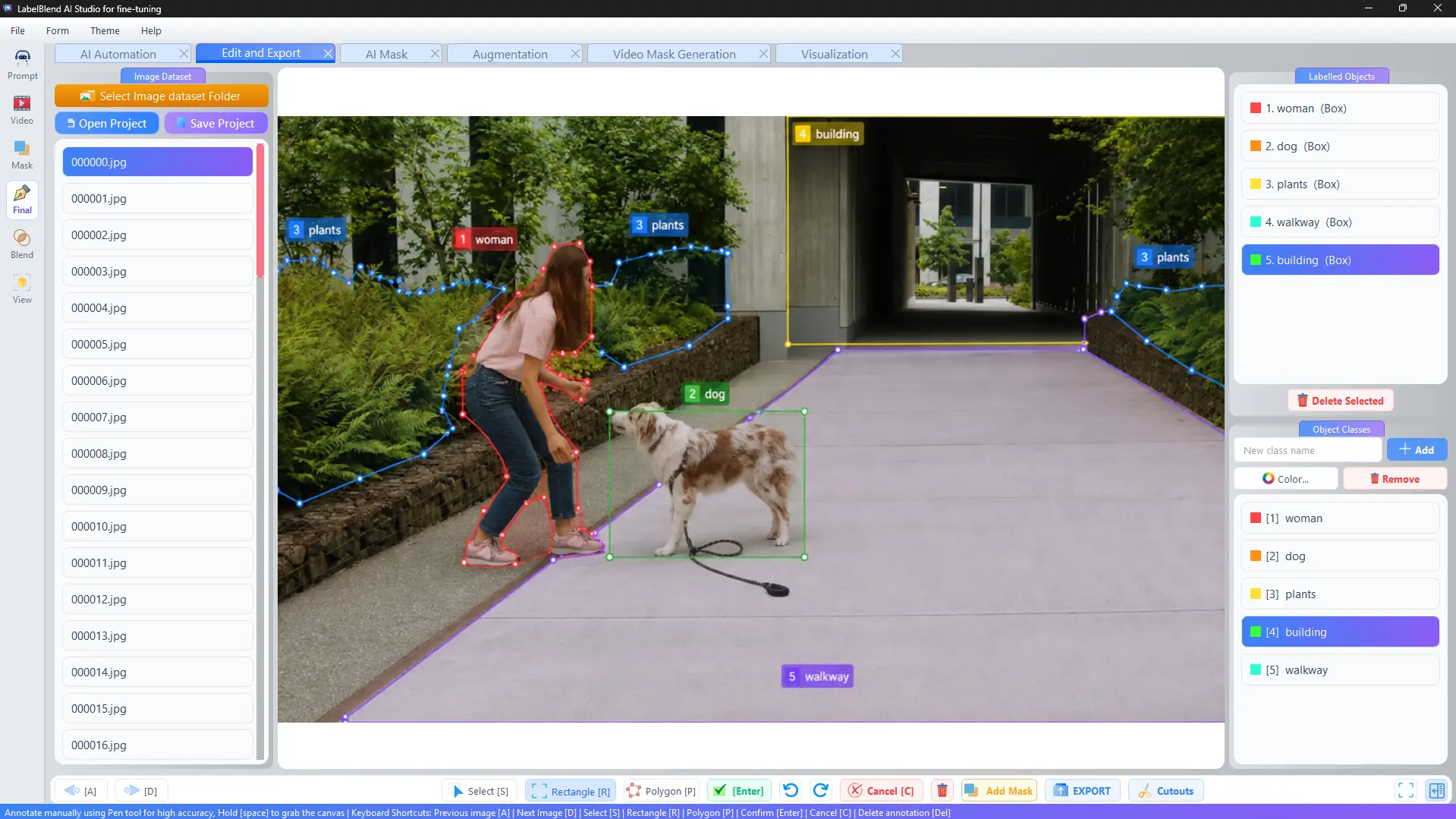
Open the Edit workspace, select the folder containing your images, then define the object classes you plan to label. Rectangle mode is fastest for detection; polygon and pen modes produce segmentation-grade outlines. Keyboard shortcuts move between images without leaving the canvas.
When to use it: Small datasets, unusual objects, or work that needs full human control.
- Select image folder→
- Add classes→
- Draw boxes / polygons→
- Confirm→
- Export
AI-assisted segmentation workflow
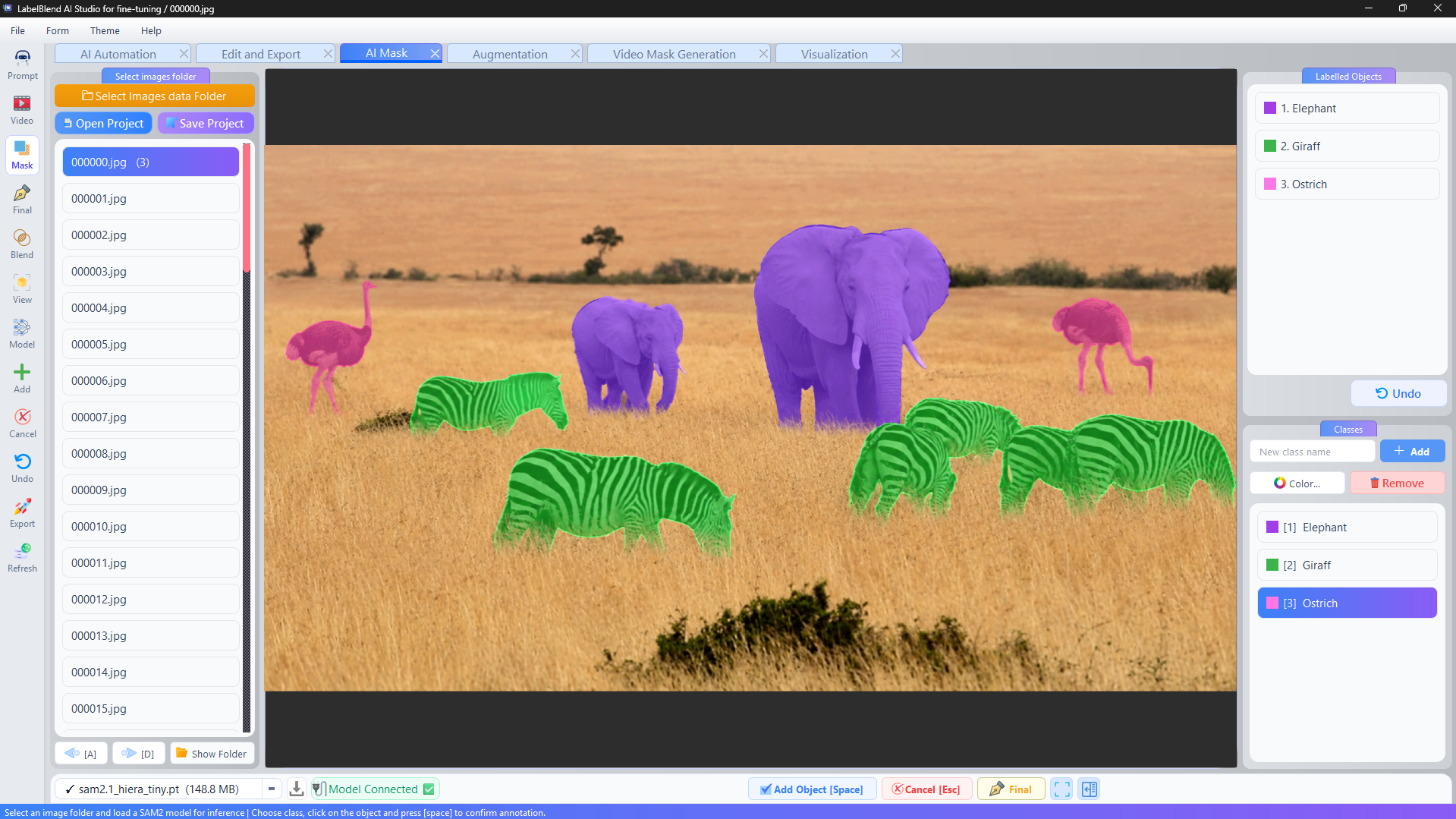
Download a SAM2 checkpoint through the model manager and connect it. Clicking an object produces a mask proposal that you assign to a class and confirm. Undo is available at each step, and every proposal remains editable in the Edit workspace afterwards.
When to use it: Segmentation datasets where hand-drawn polygons would dominate the schedule.
- Download SAM2→
- Connect model→
- Click object→
- Add object→
- Review→
- Export
Text-driven labelling workflow
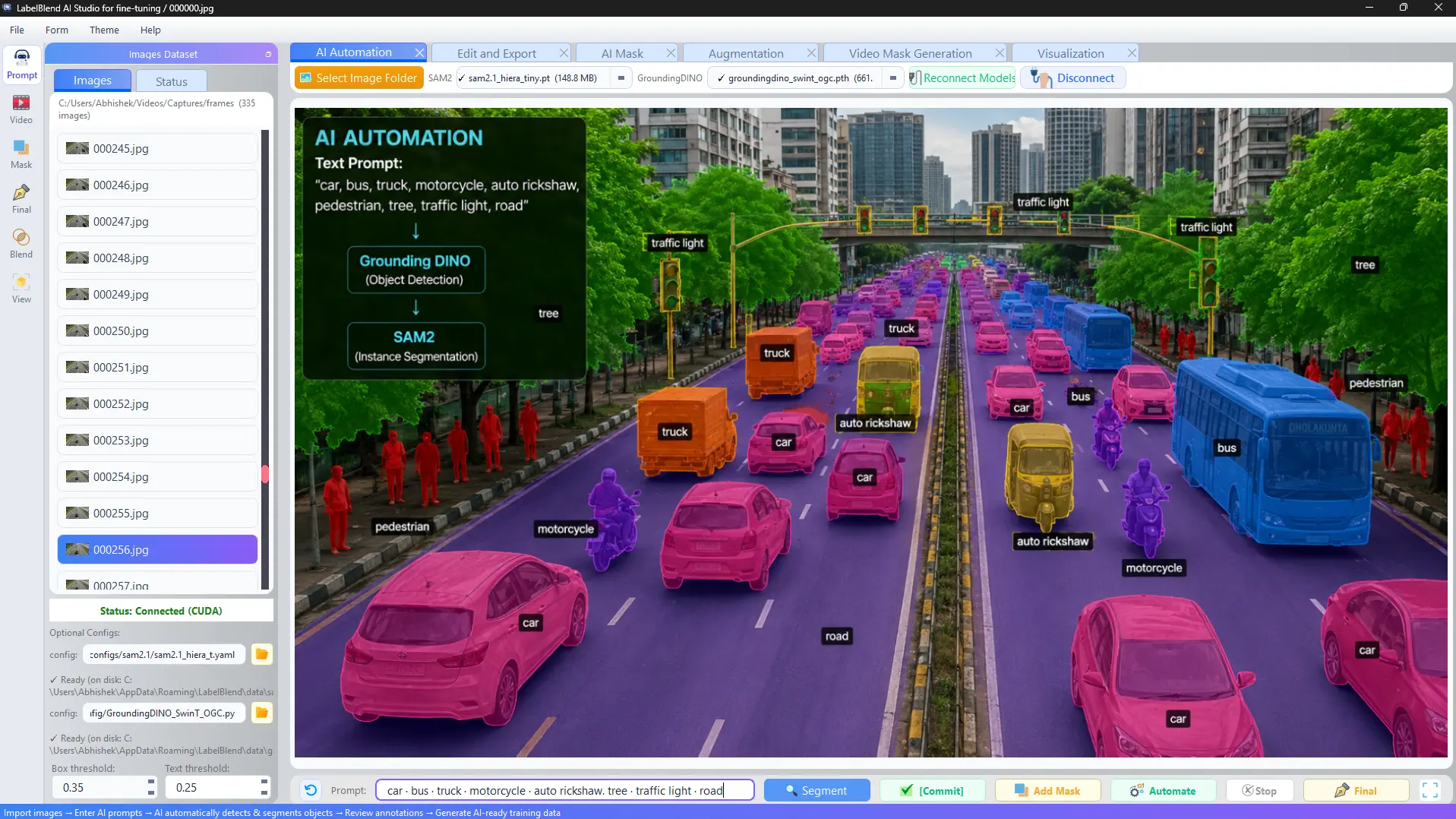
Enter lowercase phrases separated by dots, adjust box and text thresholds, then run segmentation. Proposals are committed to the dataset only when you choose to commit them, and can be automated across a folder once you are satisfied with the settings.
When to use it: Multi-class datasets where the classes can be described in plain language.
- Connect models→
- Write prompt→
- Segment→
- Commit→
- Review→
- Export
Video-to-dataset workflow
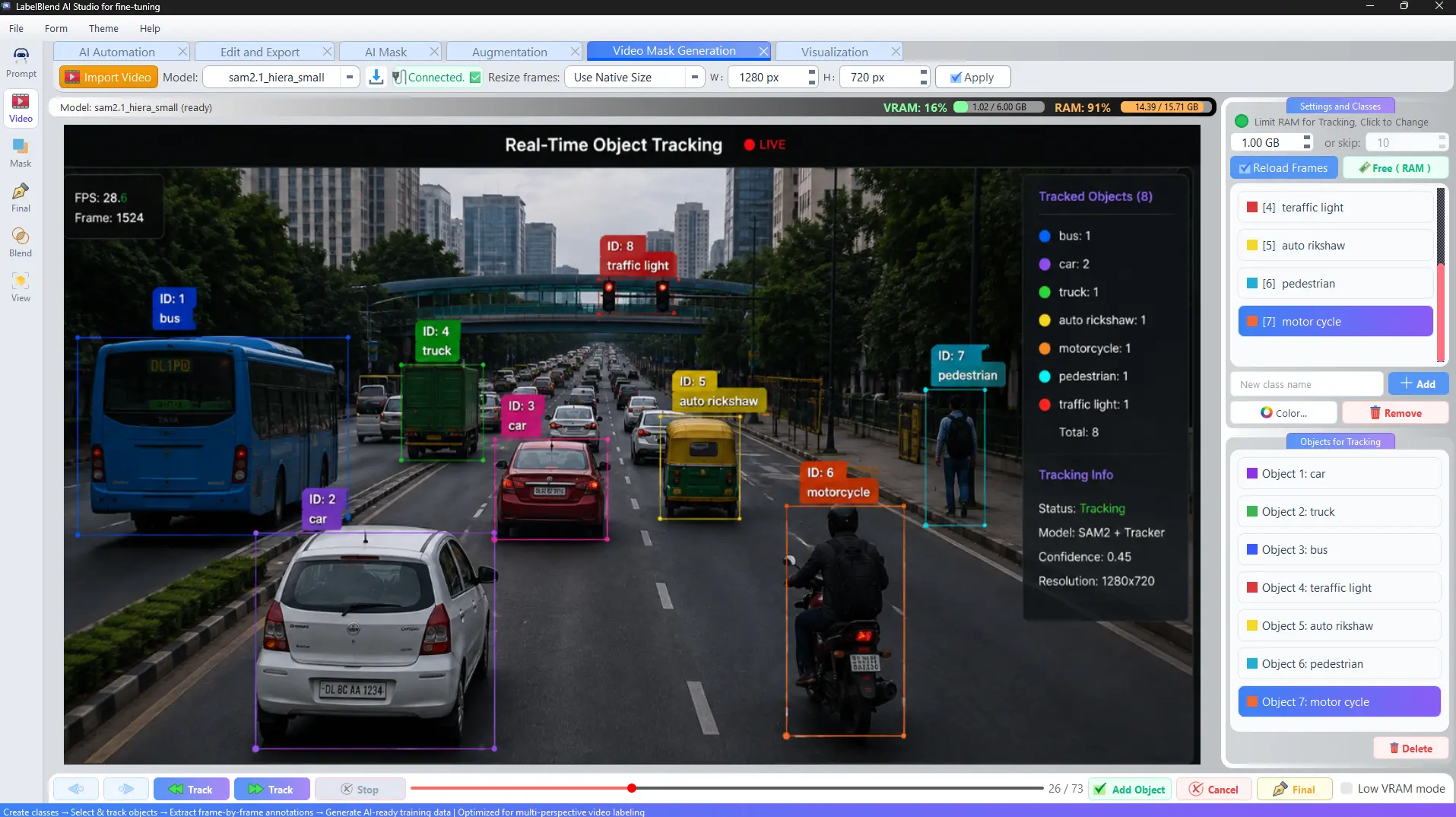
Import a video, choose a resize target or native size, and load frames with a RAM limit or frame-skip so long clips stay manageable. Add the objects you want to follow, run tracking forward or backward, then review the generated frames.
When to use it: Footage of a scene or object that should become many labelled frames.
- Import video→
- Load frames→
- Select objects→
- Track→
- Generate frames→
- Export
Synthetic data workflow
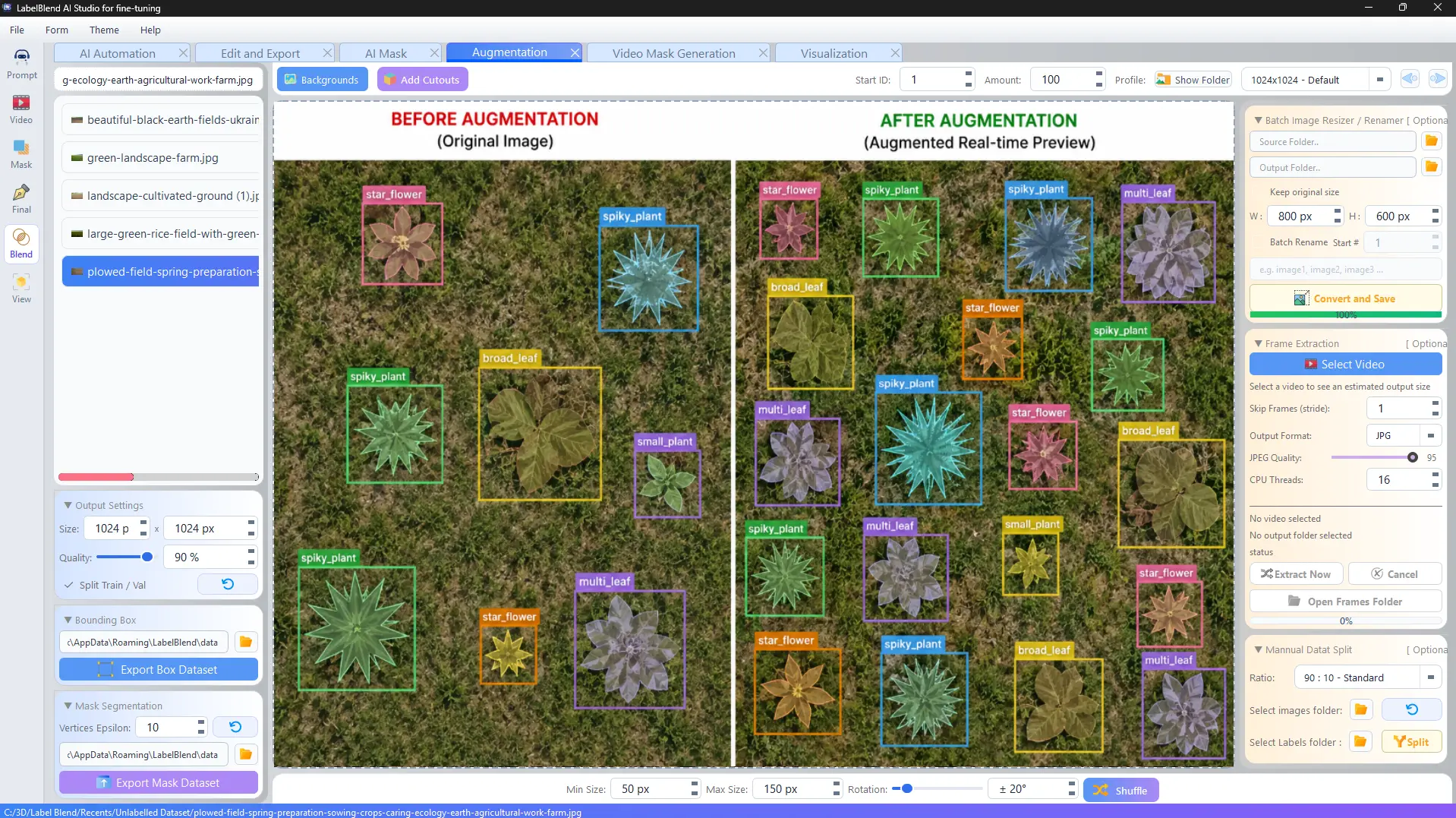
Load background images and object cutouts, set minimum and maximum object size, rotation range and the number of images to produce. Composition writes annotations for every placed object, and box or mask datasets can be exported directly from the same panel.
When to use it: Rare classes, controlled backgrounds, or a need for more variation.
- Add backgrounds→
- Add cutouts→
- Set size & rotation→
- Generate→
- Export
Review and validation workflow
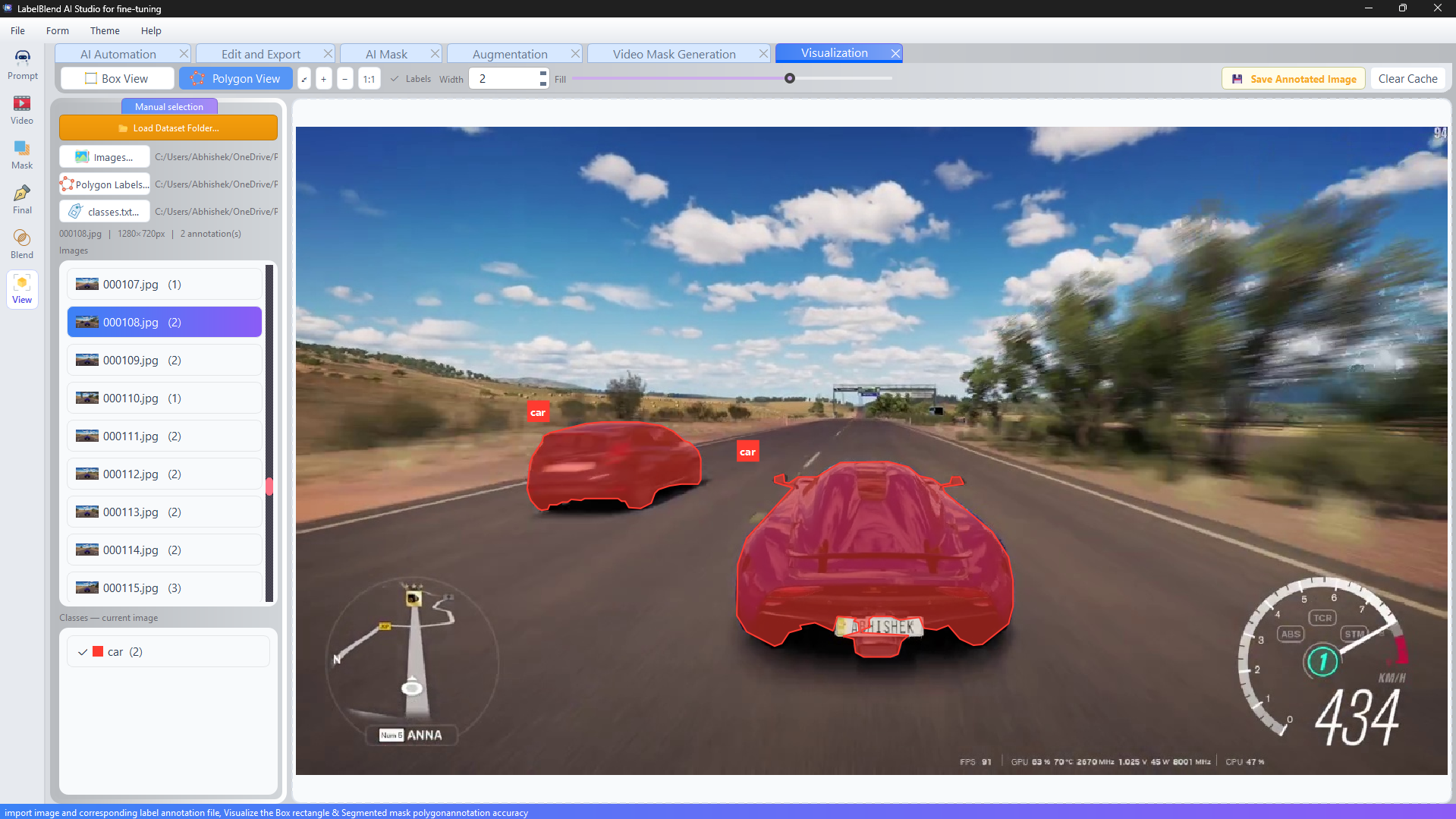
The viewer auto-detects an images/labels/classes.txt structure and renders annotations over each image. Line width and fill opacity are adjustable so thin objects stay readable, and annotated previews can be saved as images.
When to use it: Immediately before any training run.
- Load dataset folder→
- Inspect overlays→
- Correct in editor→
- Re-export
Ready to run the whole pipeline?
Install LabelBlend and work through the first tutorial with your own images.